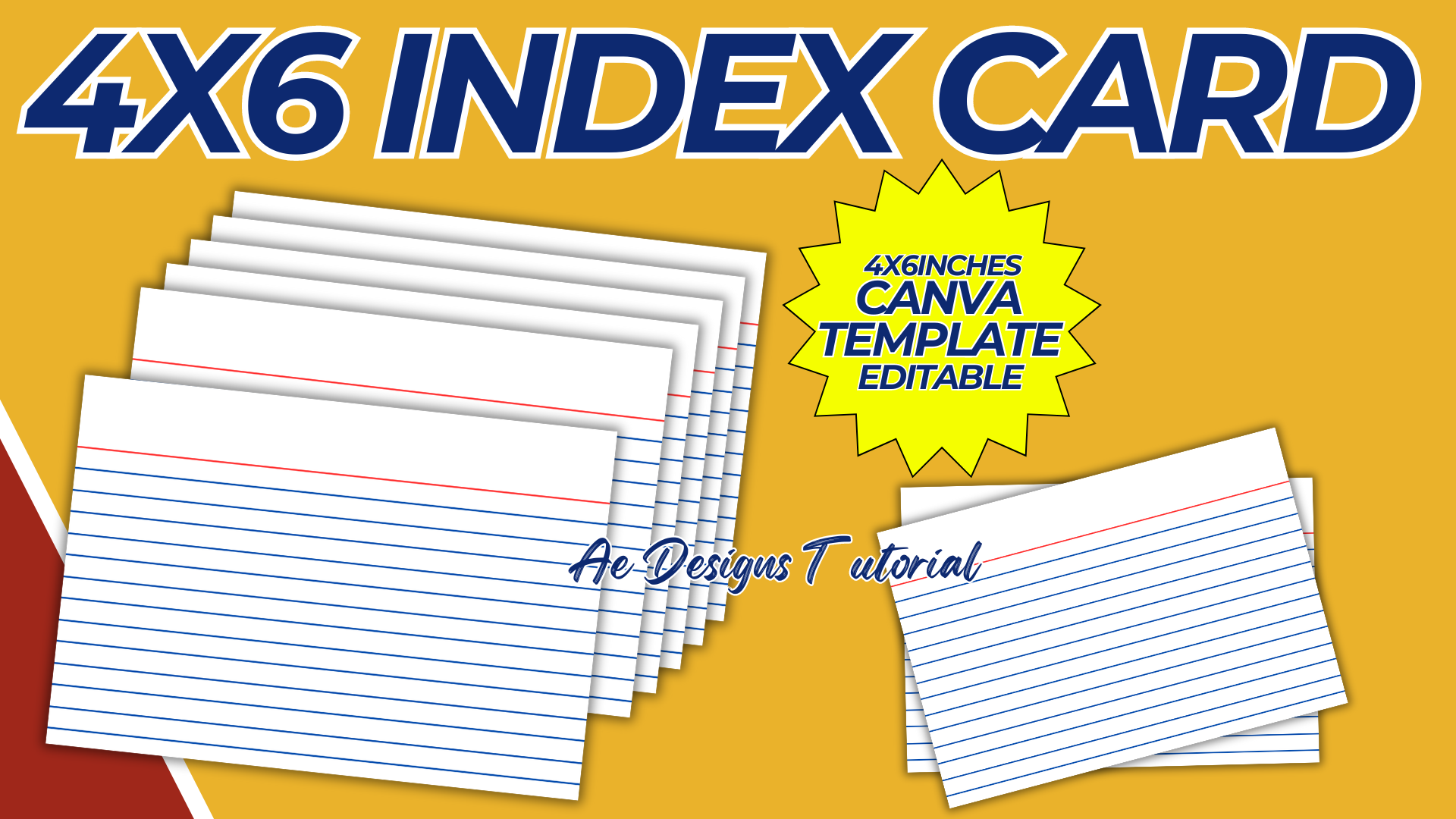

Creating a 4×6 index card template in Canva is straightforward and allows for great customization. Below is a detailed guide on how to design a 4×6 index card template using Canva, including tips for layout, design, and usage.
Purpose and Benefits
Purpose:
- To provide a customizable template for 4×6 index cards for various uses such as study aids, recipe cards, event details, etc.
Benefits:
- Easy to customize and use for different purposes.
- Professional-looking design without needing advanced design skills.
- Convenient for printing at home or using as digital notes.
Materials and Tools Needed
- Computer with internet access.
- Canva account (free or Pro version depending on needed features).
- High-quality images and icons (optional).
- Printer and high-quality card stock paper (if printing at home).
Step-by-Step Guide to Creating a 4×6 Index Card Template in Canva
1. Create a Canva Account:
- Sign up for a free account at Canva if you don’t already have one.
2. Start a New Design:
- Click on “Create a design” and select “Custom dimensions.”
- Set the dimensions to 4 inches by 6 inches (Width: 4 in, Height: 6 in).
3. Choose a Layout:
- Select a blank layout to start from scratch or choose a pre-designed template if available. For index cards, it’s often best to start with a blank layout for maximum customization.
4. Design the Index Card:
- Background: Choose a background color or pattern that suits your needs. For study cards, a plain white or light color is ideal for readability. For recipe cards or event details, you might choose a more decorative background.
- Headers: Add text boxes for headers such as “Title,” “Date,” “Subject,” or “Recipe Name.” Position these at the top or in a prominent location.
- Content Area: Add larger text boxes or lines where the main content will go. This could be bullet points, numbered lists, or blank lines for handwritten notes.
- Images/Icons: Insert any relevant images or icons to enhance the design. For recipe cards, you might include small food icons. For study cards, use simple icons to denote different subjects.
- Borders and Dividers: Add borders or dividers to section off different parts of the card. This helps keep the information organized and easy to read.
5. Customize the Design:
- Fonts: Choose clear, readable fonts for the main content. For headers, you can use a more decorative font if desired.
- Colors: Use a consistent color scheme that complements the background and is easy on the eyes.
- Alignment: Make sure all elements are well-aligned and spaced evenly.
6. Ensure Printability:
- Check that all elements are within the printable margins.
- Make sure the resolution is high enough for clear prints.
- Save and download the design in a high-resolution format suitable for printing (e.g., PDF).
Example Index Card Layouts
Study Card Layout:
- Header: “Subject” at the top.
- Main Content: Bullet points or key terms in the center.
- Footer: Small space for notes or reminders.
Recipe Card Layout:
- Header: “Recipe Name” at the top.
- Sub-Headers: “Ingredients” and “Instructions” sections.
- Images/Icons: Small food icons or a photo of the dish.
Event Details Card Layout:
- Header: “Event Name” at the top.
- Main Content: Date, Time, Location, and RSVP details.
- Footer: Contact information or additional notes.
Conclusion
By following this guide, you can create a versatile and professional-looking 4×6 index card template in Canva. Whether you’re using it for study aids, recipe cards, or event details, Canva’s tools make it easy to customize and print high-quality index cards that suit your specific needs.
NOTE: Isa isahin nyo na lang ung LINK anjan din kasi ung mga MATERIALS na pwede magamit at ung FILES.
Materials INDEX CARD 4X6
Click here: https://bit.ly/3Y0Z2IF
Click here: https://bit.ly/3RYUZsg
Click here: https://bit.ly/4dpIs9B
Click here: https://bit.ly/3TNClnc
Click here: https://bit.ly/3LeqsCW