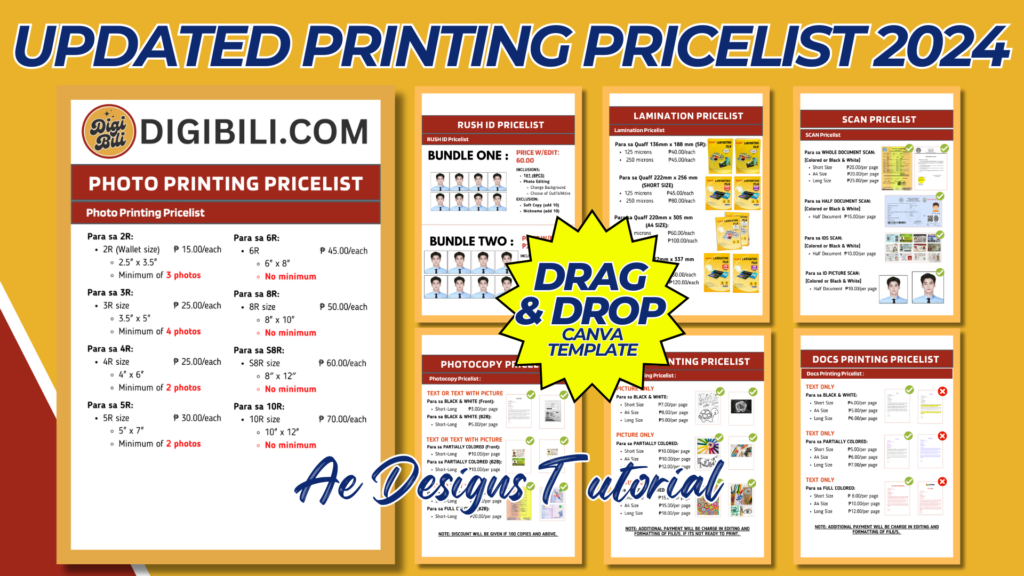
Creating an updated printing price list template for 2024 can help your customers easily understand the services and prices you offer. Below is a guide to creating a comprehensive and visually appealing printing price list template using Canva. This guide includes the key elements to include, design tips, and a sample layout.
Key Elements to Include
- Header Section:
- Business name and logo.
- Contact information (phone number, email, address, website).
- Year (2024).
- Service Categories:
- List all the printing services you offer (e.g., Business Cards, Flyers, Banners, Brochures, Posters, Custom Printing).
- Price Details:
- Detailed pricing for each service.
- Include any special offers or discounts.
- Additional Information:
- Terms and conditions.
- Payment methods.
- Turnaround time for each service.
Design Tips
- Consistency:
- Use consistent fonts and colors that align with your brand.
- Ensure all headings and subheadings are formatted uniformly.
- Readability:
- Use a clear, legible font.
- Ensure there is enough contrast between the text and the background.
- Organization:
- Use tables or grids to organize pricing information.
- Include clear sections for each service category.
- Visual Appeal:
- Incorporate relevant images or icons.
- Use your brand colors to enhance the design.
Step-by-Step Guide to Creating the Template in Canva
- Create a Canva Account:
- Sign up for a free account at Canva if you don’t already have one.
- Start a New Design:
- Click on “Create a design” and select “Custom dimensions.”
- Set the dimensions to A4 (8.27 x 11.69 inches) or your preferred size.
- Choose a Layout:
- Select a blank layout to start from scratch or choose a pre-designed template that fits your needs.
- Design the Header Section:
- Business Name and Logo: Add your business name and logo at the top.
- Contact Information: Include your contact details below the business name.
- Year: Add “2024” prominently.
- Create Service Categories:
- Headings: Create headings for each service category (e.g., Business Cards, Flyers).
- Subheadings: Add subheadings for specific services within each category if necessary.
- Add Price Details:
- Tables/Grids: Use tables or grids to organize pricing information clearly.
- Service Descriptions: Include short descriptions for each service.
- Pricing: List prices for different quantities and options.
- Special Offers: Highlight any special offers or discounts.
- Include Additional Information:
- Terms and Conditions: Add a section for any terms and conditions.
- Payment Methods: Specify accepted payment methods.
- Turnaround Time: Indicate the turnaround time for each service.
- Customize the Design:
- Fonts: Choose fonts that match your brand.
- Colors: Use your brand colors for headings and accents.
- Images/Icons: Add relevant images or icons to enhance the visual appeal.
- Alignment: Ensure all elements are well-aligned and spaced evenly for a clean and organized look.
- Review and Download:
- Review the entire template to ensure all information is accurate and well-organized.
- Download the design in a high-resolution format suitable for printing (e.g., PDF).
Sample Layout
Header Section:
- Business Name: [Your Business Name]
- Logo: [Your Logo]
- Contact Information: Phone: [Phone Number], Email: [Email Address], Address: [Business Address], Website: [Website URL]
- Year: 2024
Service Categories:
- Business Cards
- Standard Business Cards: [Description]
- 100 pcs: $XX
- 500 pcs: $XX
- 1000 pcs: $XX
- Premium Business Cards: [Description]
- 100 pcs: $XX
- 500 pcs: $XX
- 1000 pcs: $XX
- Standard Business Cards: [Description]
- Flyers
- Single-sided Flyers: [Description]
- 100 pcs: $XX
- 500 pcs: $XX
- 1000 pcs: $XX
- Double-sided Flyers: [Description]
- 100 pcs: $XX
- 500 pcs: $XX
- 1000 pcs: $XX
- Single-sided Flyers: [Description]
- Banners
- Standard Banners: [Description]
- 1×3 ft: $XX
- 2×4 ft: $XX
- 3×6 ft: $XX
- Standard Banners: [Description]
- Brochures
- Tri-fold Brochures: [Description]
- 100 pcs: $XX
- 500 pcs: $XX
- 1000 pcs: $XX
- Tri-fold Brochures: [Description]
- Posters
- Standard Posters: [Description]
- 11×17 in: $XX
- 18×24 in: $XX
- 24×36 in: $XX
- Standard Posters: [Description]
- Custom Printing
- [List any other custom printing services offered and their prices]
Additional Information:
- Terms and Conditions: [Details]
- Payment Methods: [Details]
- Turnaround Time: [Details]
Conclusion
By following this guide, you can create a professional and attractive printing price list template for 2024 using Canva. This template will not only help your customers easily understand your services and prices but also enhance your business’s professional image. Once completed, print and display the price list in your shop and share it digitally with your customers.
NOTE: Isa isahin nyo na lang ung LINK anjan din kasi ung mga MATERIALS na pwede magamit at ung FILES.
Materials UPDATED PRINTING PRICELIST 2024
Click here: https://bit.ly/3Y0Z2IF
Click here: https://bit.ly/3RYUZsg
Click here: https://bit.ly/3TNClnc
Click here: https://bit.ly/3SzNjgx
Click here: https://bit.ly/3LeqsCW