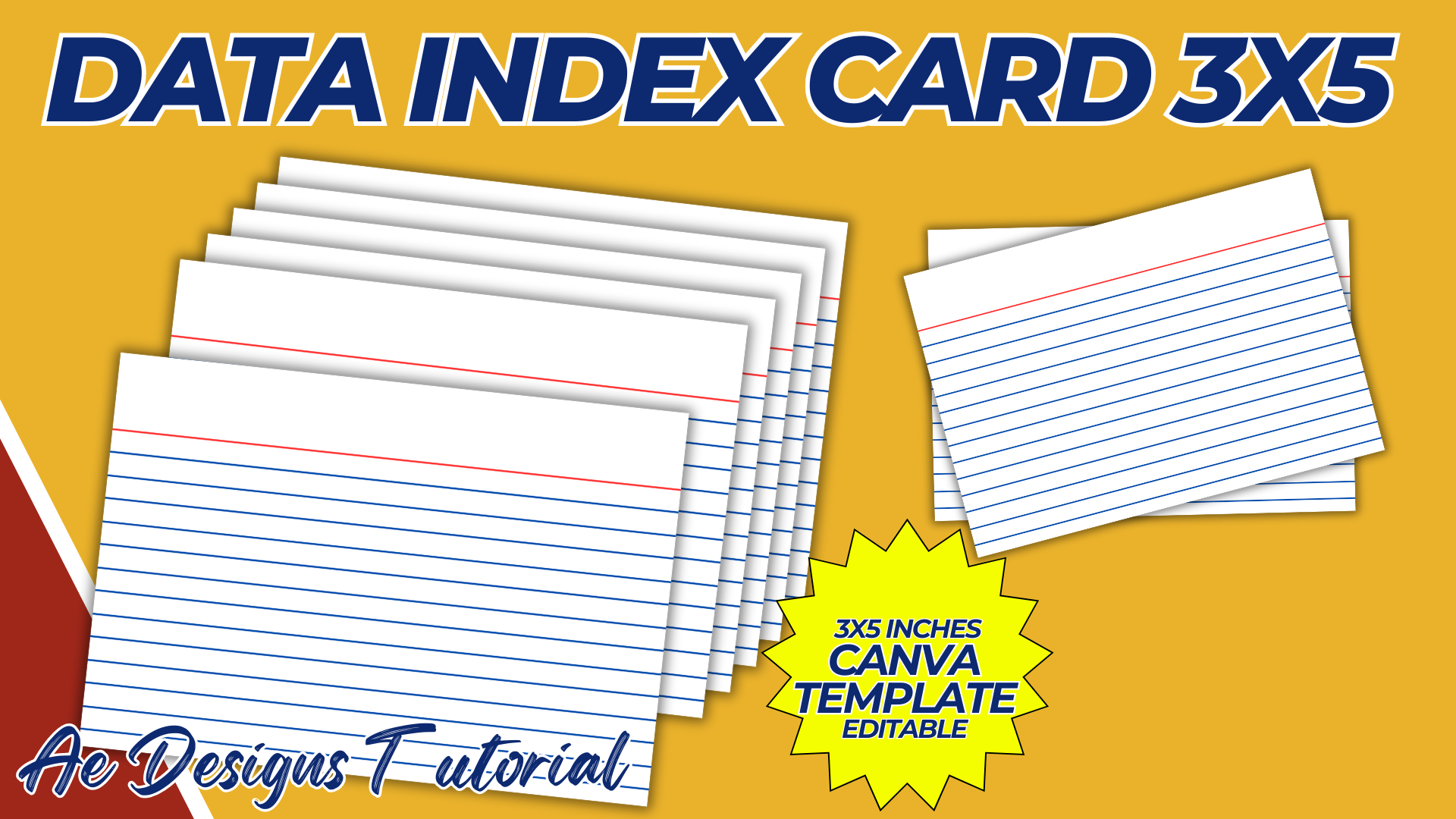

Creating a 3×5 data index card template in Canva is an excellent way to design a versatile tool for organizing information, studying, or presenting data. Here’s a detailed guide to help you design your index card template:
Steps to Create a 3×5 Data Index Card Template in Canva:
1. Set Up Canva Workspace:
- Log in to Canva: If you don’t have an account, sign up for free.
- Create a New Design: Select “Custom Size” and enter the dimensions: 3 inches (width) by 5 inches (height).
2. Design the Index Card Layout:
- Background: Start with a simple, clean background. You can choose a solid color, light pattern, or subtle texture.
- Borders: Add a thin border around the edges of the card to frame the content neatly.
- Grid Layout (Optional): If you want to include a grid layout for easier writing or drawing, create light horizontal and vertical lines.
3. Text Areas:
- Title Section: Allocate space at the top for a title or header. Use bold or larger font size to make it stand out.
- Example: “Topic,” “Date,” or “Subject Name.”
- Main Content Area: Design the main body where the bulk of information will be written. Keep this area spacious and uncluttered.
- Line Spacing: You can add lines to guide handwriting or leave it blank for versatility.
- Footer Section: Include a small footer at the bottom for additional notes, references, or page numbers.
4. Customization Features:
- Colors: Offer different color themes, such as pastel shades for a softer look or vibrant colors for a more energetic feel.
- Fonts: Use readable fonts like Arial, Times New Roman, or Helvetica for the main content. For headers, you might want to use something slightly more decorative but still professional.
- Icons and Graphics: Depending on the purpose of the index card, you can add small icons or illustrations (e.g., a light bulb for ideas, a book for study notes).
5. Grid and Line Options:
- Lined Version: Create a version with horizontal lines to guide handwriting. This is particularly useful for study notes or detailed information.
- Blank Version: Leave the main area blank for maximum flexibility, allowing users to draw diagrams or write freely.
- Dotted Grid: A dotted grid can be a great middle ground, offering guidance without the rigidity of full lines.
6. Design Variations:
- Single vs. Double-Sided: Decide if you want to create a design for both sides of the card. The back could be used for additional notes or diagrams.
- Themed Designs: Depending on the audience, you can create themed designs (e.g., academic, professional, or creative themes).
- Pre-Filled Templates: Offer a version with pre-filled content, such as common headings, to make the cards easier to use.
7. Mockup Creation:
- Preview in a Realistic Setting: If available, use Canva’s mockup features or create a mockup to see how the card would look when printed.
- 3D View: Check if your design translates well into a printed format, ensuring legibility and proper layout.
8. Exporting and Sharing:
- Download: Once you’re satisfied with your design, download it in high resolution (PNG for digital use, PDF for printing).
- Print Settings: Ensure the design is print-ready with the correct color profile (CMYK for print) and high resolution (300 DPI).
9. Use Cases:
- Study Notes: Perfect for students who need to organize study material.
- Data Recording: Useful for professionals who need to record and reference data.
- Presentation: Handy for speakers or lecturers who prefer to use cards for key points.
Sample Text and Design Ideas:
- Title Example: “Biology 101 – Chapter 3” or “Meeting Notes – August 2024.”
- Content Example: Line up the card with bullet points, key terms, definitions, or key data.
- Design Elements: Use minimalist icons like a pencil, notebook, or light bulb to add a visual touch without cluttering the space.
- Font Suggestions: Use a combination of sans-serif fonts for a clean and modern look.
Final Tips:
- Consistency: Ensure that all elements (lines, text areas, and borders) are evenly spaced and aligned for a professional look.
- Easy to Use: The template should be intuitive, with clear sections that make it easy to fill out the information.
- Print-Test: Before mass printing, do a test print to ensure the layout and colors appear as expected on paper.
By following these steps, you’ll create a versatile and professional 3×5 data index card template that is ready for use in various settings, whether for academic, professional, or personal purposes.
NOTE: Isa isahin nyo na lang ung LINK anjan din kasi ung mga MATERIALS na pwede magamit at ung FILES.
Materials INDEX CARD (5 x 3 in)
Click here: https://bit.ly/3Y0Z2IF
Click here: https://bit.ly/3RYUZsg
Click here: https://bit.ly/3TNClnc
Click here: https://bit.ly/4fF8cRc
Click here: https://bit.ly/3LeqsCW